 VVavy
VVavy
How To Layer Effects In VVavy To Customize Built-In Visuals And Video Streams
Layering effects in VVavy is a simple way to give a scene more character. Whether you are starting from one of the built-in visuals or working with a live video stream, adding a few extra layers can make the final look feel more textured, more responsive, and more like your own instead of leaving the base scene exactly as it started.
Open the Effects panel from the live stage
Start with any scene you already like, whether that is a built-in visual or a setup that includes video input. In the top bar, use the star-shaped Effects button to open the panel where you can add extra treatments on top of what is already playing.
That gives you a separate place to experiment without throwing away the base look. Instead of changing the whole scene, you can build on it slowly and decide how much extra motion, glow, distortion, texture, or atmosphere you want.
Quick start:
- Load a built-in visual or your current stream-based scene.
- Find the star icon in the top bar.
- Tap Effects to open Chain Lab.

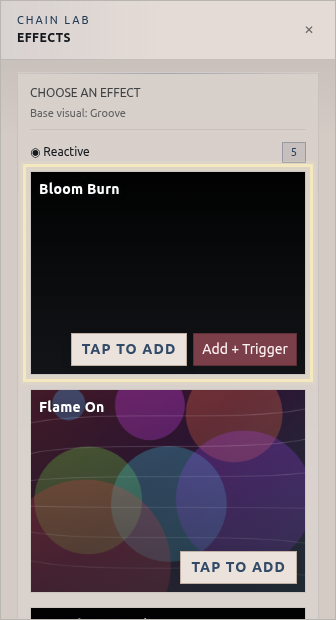
Tap an effect card to add a new layer
Inside the panel, the effect cards give you different ways to push the mood of the scene. Some additions can make the image feel brighter or softer, while others can add motion trails, framing changes, or more reactive energy on top of the original layer.
When you find something that fits, tap the card to add it. The goal here is not to replace the scene you already chose. It is to enhance it with an extra layer so the result feels more intentional and more customized to the kind of video or visual you want to present.
The add step is useful when you want to:
- give a built-in visual more depth without starting over
- make a video stream feel more stylized or reactive
- try a few different treatments before settling on a final look
Confirm the layer in Selected Effects
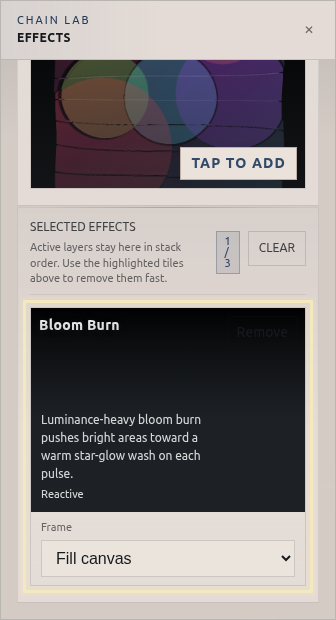
After you add an effect, it appears in the Selected Effects area so you can see the stack taking shape. That makes it easier to work calmly because you can confirm each addition before deciding whether the scene needs anything else.
From there, you can keep layering, remove something that feels too heavy, or adjust the frame setting for that layer. It becomes a gentle refinement process instead of an all-or-nothing switch.
What to look for after adding the effect:
- the Selected Effects section becomes visible
- the added effect card appears in the stack
- the stack count updates to show the new layer
- the layer exposes its frame control for further shaping
Why this workflow matters
A lot of good visual editing comes from small additions, not dramatic resets. Layering effects gives you room to keep the base scene that already works while adding the extra polish that makes it feel more finished.
That is useful if you are preparing a clip, refining a live setup, or trying to make a built-in visual or stream source feel more personal. A few well-chosen layers can go a long way without making the whole scene harder to control.
Keep exploring
Common questions
Shape a scene that feels more like your own
Start with any built-in visual or stream setup, add a few layers, and refine the scene until it has the extra texture and personality you want.